
Use iPhone Reader View to Get Straight To The Content
I read a lot of articles on my iPhone. Some come from social media, some from news sites, and some get sent to me by friends or clients.
The problem is that a perfectly good article can sometimes be buried under so many ads, menus, pop-ups and other distractions that you start wondering whether the actual story is hiding in there somewhere.
That’s when I use Safari Reader.
Reader strips away much of the clutter around an article and gives you a cleaner version with the text and important images. It can make long articles much easier to read, especially on an iPhone or iPad.
How to use Reader on iPhone or iPad
- Open an article in Safari.
- Tap the Page Menu button on the left side of the address bar.
- Choose Show Reader.
If Reader is available for that page, Safari will replace most of the advertising, menus and other distractions with a much cleaner reading view.
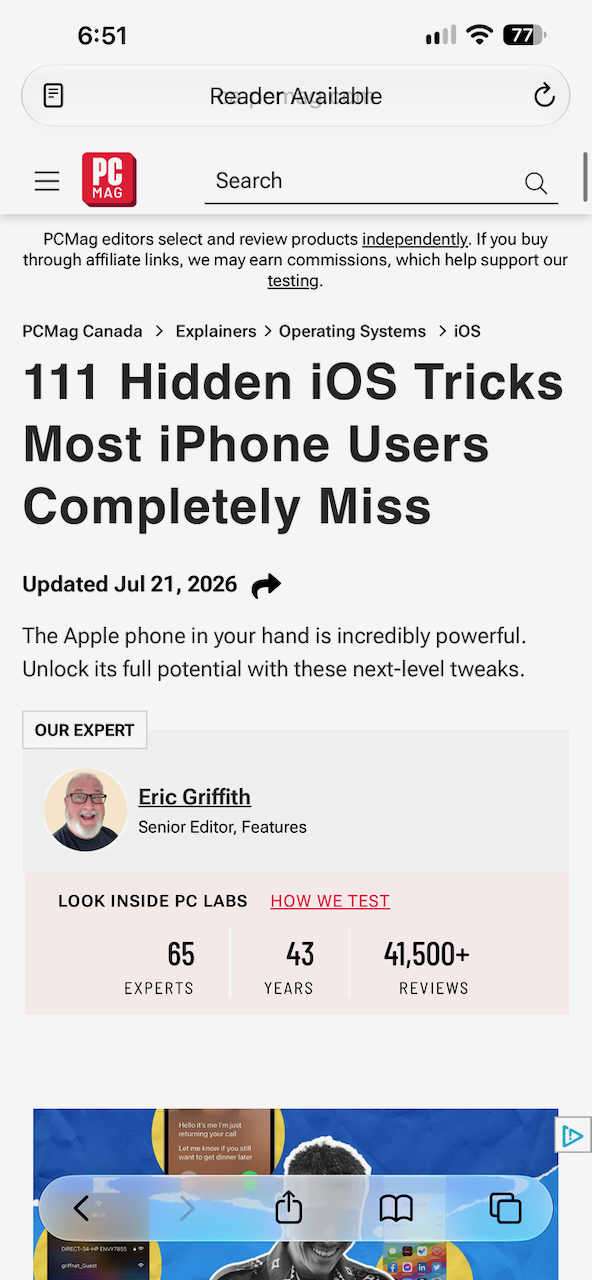
Make Reader easier on your eyes
Once Reader is open, tap the Page Menu again and you can adjust how the page looks.
Depending on your version of iOS or iPadOS, you can change things such as:
- text size
- font
- page background
I find this especially useful on sites with tiny type, poor contrast or layouts apparently designed by someone who assumes everyone has perfect eyesight.
Use Reader automatically on favourite sites
If there’s a website you read regularly, Safari can also use Reader automatically whenever it’s available.
Open the Page Menu while visiting the site and look for the website settings. From there, you can turn on Reader for that website.
Once it’s set, Safari does the cleanup for you, which is one less button to press and one less ad to accidentally tap.
Reader isn’t available everywhere
Reader works best with articles and other text-heavy pages. It may not appear on home pages, shopping sites, interactive pages or websites Safari can’t identify as an article.
But when it is available, it’s one of those small Safari features that quietly makes using an iPhone or iPad a lot nicer.
Need help getting more out of your iPhone or iPad?
Up Your Media provides practical Apple help and one-on-one training in Parksville, Qualicum Beach and throughout Central Vancouver Island.
Contact Up Your Media if you’d like help getting more comfortable with Safari, your iPhone, iPad or other Apple devices.