
How To Clear Your Browser Caches and Cookies
If a website won’t load properly, keeps showing old information, won’t let you sign in, or is simply behaving strangely, clearing your browser’s cache and cookies is often an easy fix.
Your browser stores temporary website files to make pages load faster. Occasionally that stored information becomes outdated or corrupted and causes problems.
Safari on a Mac
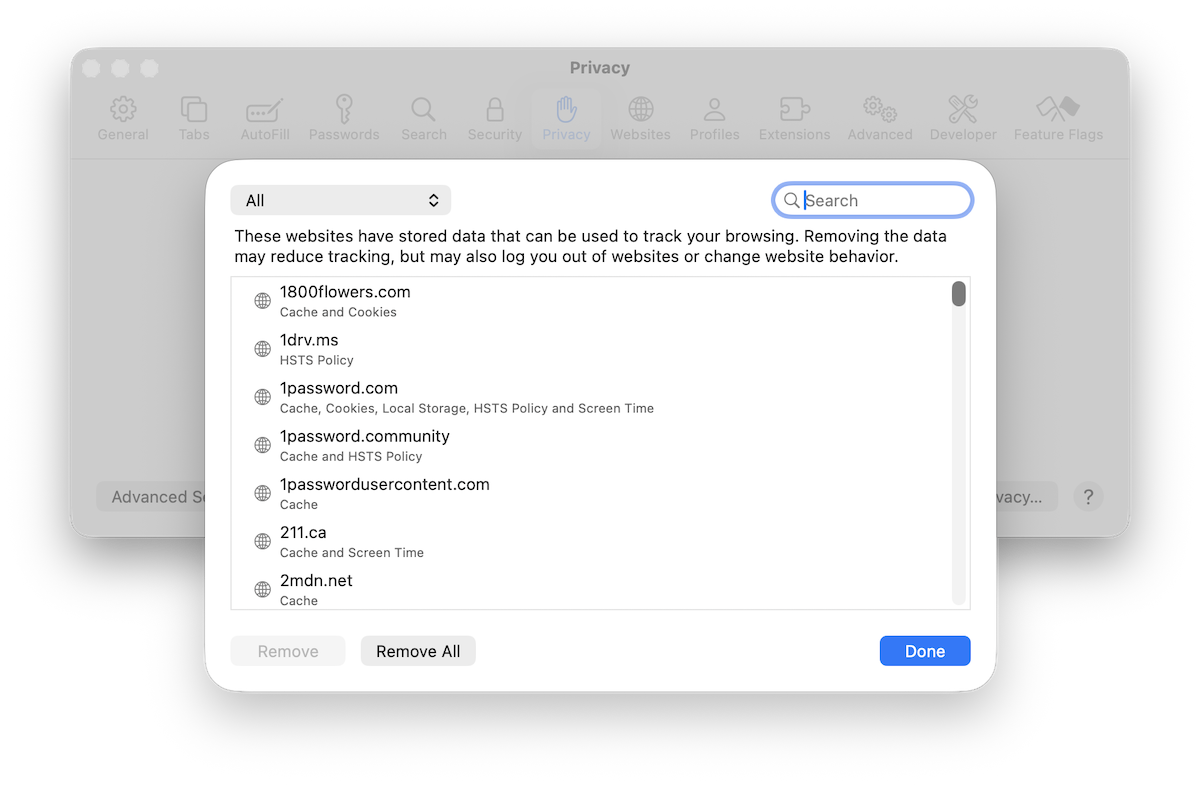
To remove cookies and stored website data:
- Open Safari.
- Choose Safari > Settings.
- Click Privacy.
- Click Manage Website Data.
- Select a particular website and click Remove, or choose Remove All.
If a page is still displaying old content, you can also empty Safari’s cache. Go to Safari > Settings > Advanced and enable the web developer features. Then choose Develop > Empty Caches from the menu bar.
Google Chrome
In Chrome:
- Click the three-dot menu in the upper-right corner.
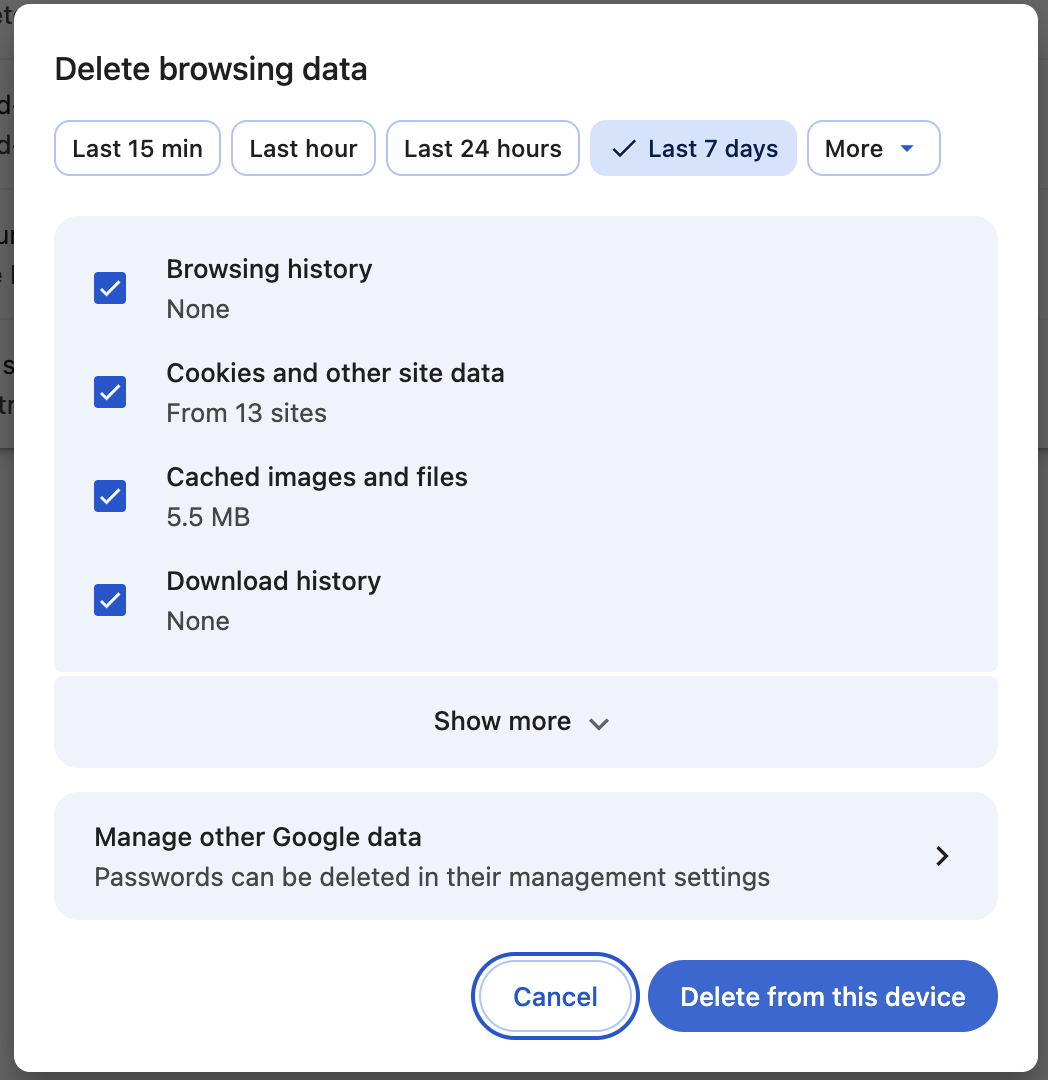
- Choose Delete Browsing Data.
- Select a time range.
- Check Cookies and other site data and Cached images and files.
- Click Delete Data.
On an iPhone or iPad
For Safari, open Settings > Apps > Safari and choose Clear History and Website Data.
Keep in mind that clearing cookies may sign you out of websites, so make sure you know your passwords before removing everything.
Still having trouble?
If clearing the cache doesn’t solve the problem, try quitting and reopening your browser, restarting your device, disabling browser extensions, or testing the website in another browser.
Sometimes the problem is with the website itself, which is at least reassuring because for once it isn’t your Mac’s fault.
Need help?
If your browser is still acting up, Up Your Media can help sort out whether the problem is with Safari, Chrome, your Mac or the website you’re trying to use.
We provide practical Apple support in Parksville, Qualicum Beach and throughout Central Vancouver Island.
Contact Up Your Media if you’d like help getting your Mac, iPhone or iPad behaving itself again.