
What’s Inside Your Mac? The Main Parts Explained
I often get asked some version of this question:
“What exactly am I paying for when I buy a Mac?”
It’s a fair question. Apple gives you a list of specifications involving chips, memory, storage and graphics, and unless you spend your evenings reading processor diagrams for fun, some of it can sound like alphabet soup.
The good news is that you don’t need to understand every technical detail. For most people, there are a few main parts that matter when choosing or understanding a Mac.
1. The processor: the brain of the Mac
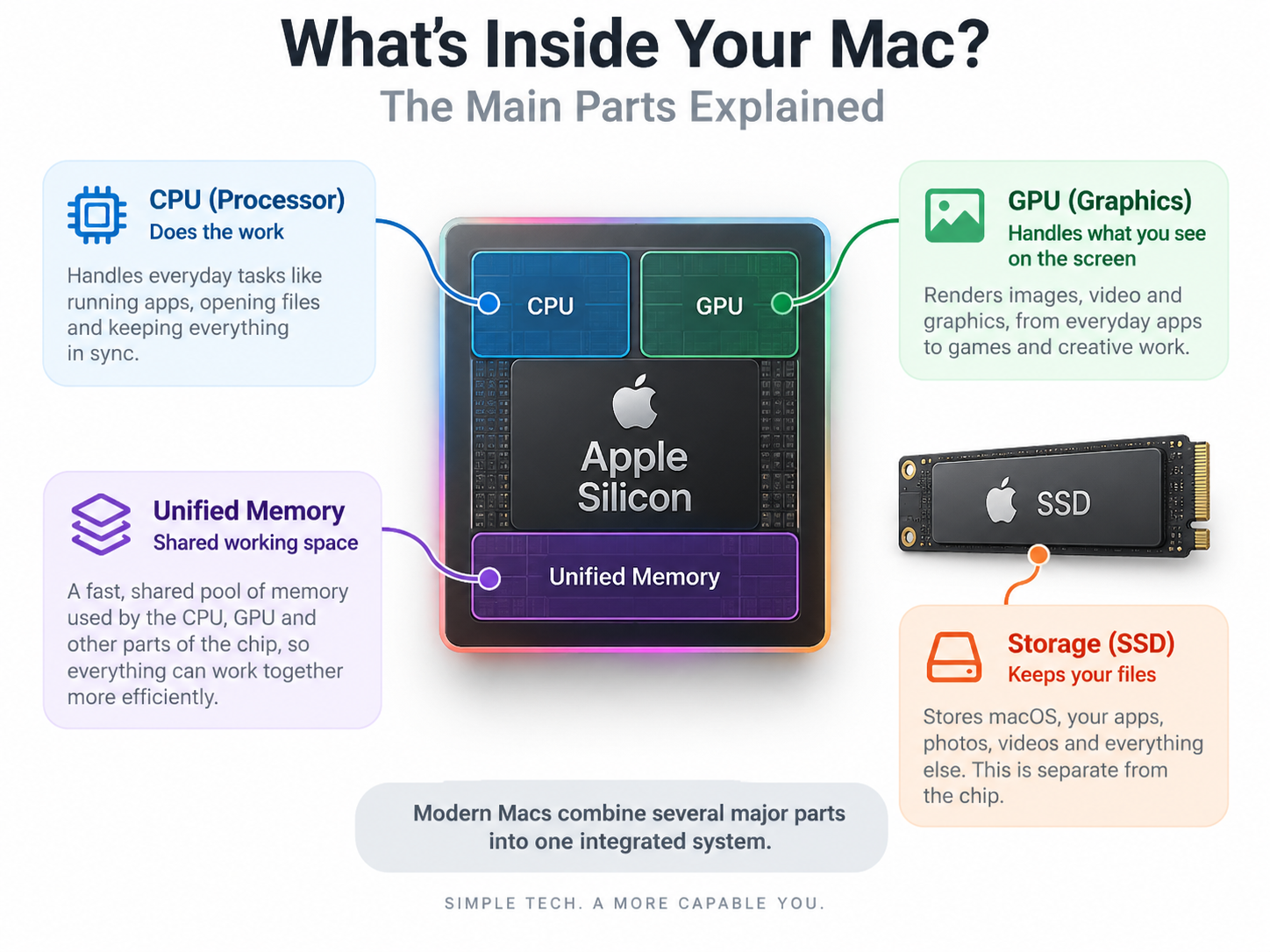
The processor handles the instructions that make your Mac work. It’s involved in everything from opening Safari and checking email to editing photos, rendering video and running multiple applications at once.
Older Macs used Intel processors. Current Macs use Apple silicon, such as the M-series chips.
Apple silicon combines several major parts of the computer into one tightly integrated system, including the processor, graphics and memory controller. That integration is one of the reasons modern Macs can be very fast while also using less power.
For everyday tasks, you generally don’t need the most powerful chip Apple makes. Email, web browsing, documents, Photos and video calls don’t require a machine capable of editing a feature film before lunch.
2. Memory: your Mac’s working space
Memory is the temporary working space your Mac uses while applications are open.
On older computers this was usually called RAM. On Apple silicon Macs, Apple calls it unified memory.
I like to explain memory as desk space.
The more desk space you have, the more things you can comfortably work on at once. If you have Safari open with a dozen tabs, Mail, Photos, a spreadsheet and a video call all going at the same time, memory is what helps keep all of that moving smoothly.
Modern Macs manage memory very efficiently, but if you regularly use demanding applications or do several heavy tasks at once, more memory can still make a noticeable difference.
One important thing to remember: on current Macs, memory is built into the system and generally cannot be upgraded later. If you think you’ll need more, decide that when you buy the Mac, not three years afterward when inspiration strikes.
3. Storage: where your files live
Storage is where macOS, your applications, documents, photos, videos and other files are kept.
Modern Macs use fast solid-state storage, usually called an SSD.
If memory is your desk, storage is the filing cabinet beside it.
A larger filing cabinet lets you keep more stuff. It doesn’t necessarily make the Mac faster at thinking, but running out of storage space can certainly make the experience miserable.
Storage is one of the areas where people often underestimate their needs, especially if they have large Photos libraries or years of video.
The good news is that while internal storage usually can’t be upgraded, you can add external SSDs later for photos, video, archives and other large files.
4. Graphics: what puts everything on the screen
The graphics processor handles the visual side of the Mac.
That includes drawing windows, displaying video, running external monitors, editing photos and helping with graphics-heavy work such as video editing and 3D applications.
On older Macs, graphics might have been handled by a separate graphics card or built into the Intel processor.
On Apple silicon Macs, the graphics processor is built directly into the same chip as the main processor.
For most home and office users, the graphics built into current Macs are more than capable. People doing professional video, 3D work or other demanding graphics tasks may benefit from higher-end Apple silicon with more graphics cores.
What happened to the old “four separate parts” idea?
Years ago, it made sense to think of the processor, RAM, graphics and storage as fairly separate components.
Modern Apple silicon has changed that.
The processor, graphics and memory now work together much more closely as part of one integrated system. Storage is still separate, but even that is tightly connected to how macOS manages memory and performance.
So the old explanation isn’t exactly wrong. It’s just a bit like describing a modern car by pointing out where the carburetor used to be.
Which parts matter most when buying a Mac?
For most people, I’d focus on three things:
- Memory: how much working room you need
- Storage: how much you need to keep on the Mac
- Processor level: whether you’re doing everyday work or something much more demanding
The base Apple silicon chips are already very capable for normal home and office use.
More expensive models make sense when you actually need the extra performance, not simply because the specification sheet contains larger numbers. Bigger numbers have a remarkable ability to make perfectly sensible people spend money.
How can I see what my Mac has?
Choose Apple menu > About This Mac.
You’ll see information about your Mac model, Apple silicon chip, memory and version of macOS.
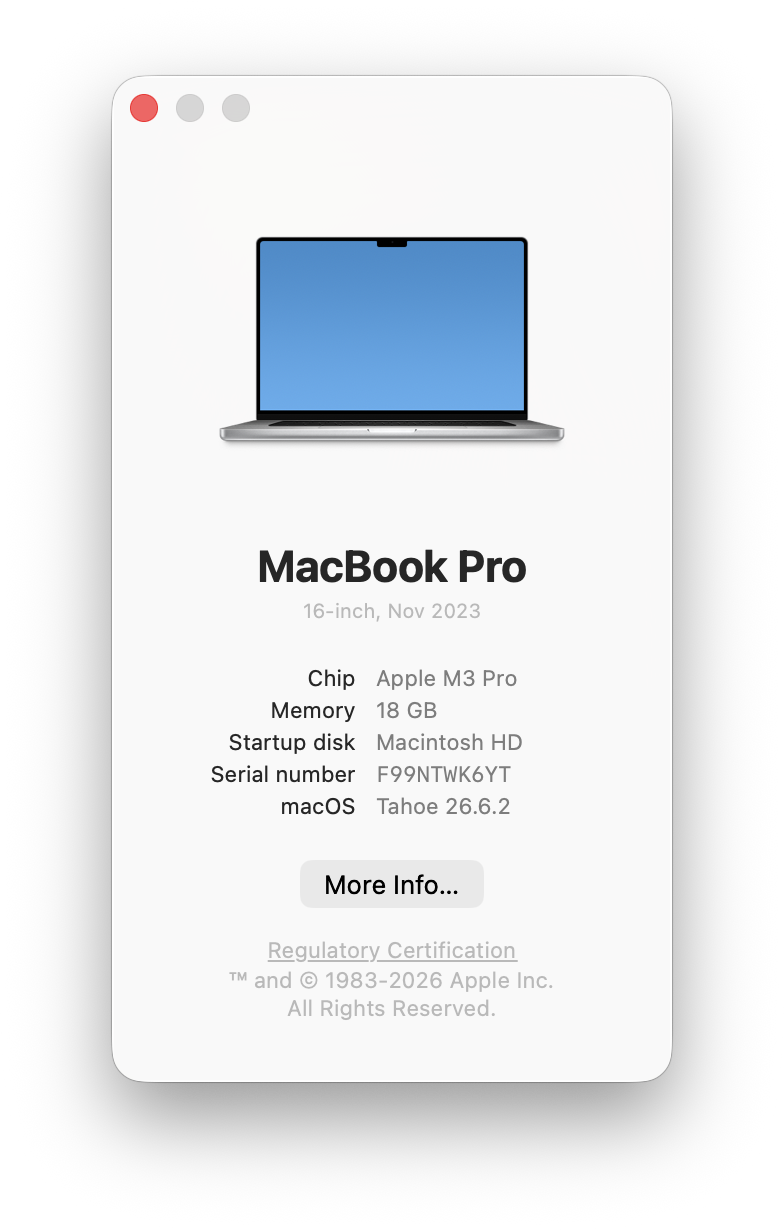
For storage details, go to System Settings > General > Storage.
The simple version
If you don’t want to remember any of the technical terminology, this is enough:
- Processor: does the work
- Memory: gives the Mac room to work
- Storage: keeps your files
- Graphics: handles what you see on the screen
On a modern Mac, those parts are more integrated than ever, which is one reason Apple silicon performs so well.
Need help choosing the right Mac?
If you’re buying a new Mac and the choices between chips, memory and storage are starting to look like a menu written for engineers, Up Your Media can help you figure out what actually makes sense for the way you use your computer.
We provide practical Apple support in Parksville, Qualicum Beach and throughout Central Vancouver Island.
Contact Up Your Media if you’d like help choosing, setting up or replacing a Mac.