
Memory (RAM) vs Storage Capacity
Memory vs Storage: What’s the Difference on a Mac?
One of the most common questions I get from Mac users is some version of this:
“Do I need more memory, or do I need more storage?”
It’s an easy thing to mix up because both are measured in gigabytes, both affect how your Mac behaves, and both somehow become important right around the time you’re trying to buy a new computer.
The short version is this:
- Memory helps your Mac work on things right now.
- Storage is where your Mac keeps things for later.
What is memory?
Memory, traditionally called RAM, is the working space your Mac uses while applications are open and running.
Think of it like the surface of your desk.
If you have a large desk, you can spread out several projects at once. You might have Safari open with a dozen tabs, Mail running, Photos open, a video playing and a few documents on the go without everything getting in the way.
If the desk is too small, you can still work, but you’ll spend more time moving things around to make room.
That’s roughly what happens when a Mac starts running short of memory.
Apple silicon changed the terminology a little
On newer Macs with Apple silicon, Apple generally refers to this as unified memory rather than traditional RAM.
The basic idea is still the same: it’s fast working memory used by the processor while your Mac is doing things.
The difference is that Apple’s processor, graphics system and other parts of the Mac can share the same pool of memory instead of keeping separate pools for different jobs.
For the average user, you don’t need to understand the engineering behind it. Just remember that more unified memory gives your Mac more room to work with multiple or demanding applications at the same time.
What is storage?
Storage is where your files live when you’re not actively working on them.
This includes things like:
- Photos and videos
- Documents
- Applications
- Music
- Mail attachments
- Downloads
- macOS itself
Most modern Macs use very fast solid-state storage, usually called an SSD.
If memory is the top of your desk, storage is the filing cabinet beside it.
A bigger filing cabinet lets you keep more stuff. It doesn’t necessarily make you think faster, but running completely out of filing space can certainly make life unpleasant.
What happens when you don’t have enough memory?
If your Mac runs low on memory, macOS can temporarily use part of the internal storage as extra working space. This is called swap.
Modern Macs are quite good at managing this automatically, and seeing some swap being used isn’t necessarily a problem.
But if you regularly run demanding applications, keep huge numbers of browser tabs open, edit large photos or videos, or do several heavy tasks at once, more memory can make a noticeable difference.
What happens when you don’t have enough storage?
When the internal storage gets too full, you’ll usually start seeing warnings about running out of space.
A very full Mac can also have trouble installing updates, creating temporary files and performing other normal tasks.
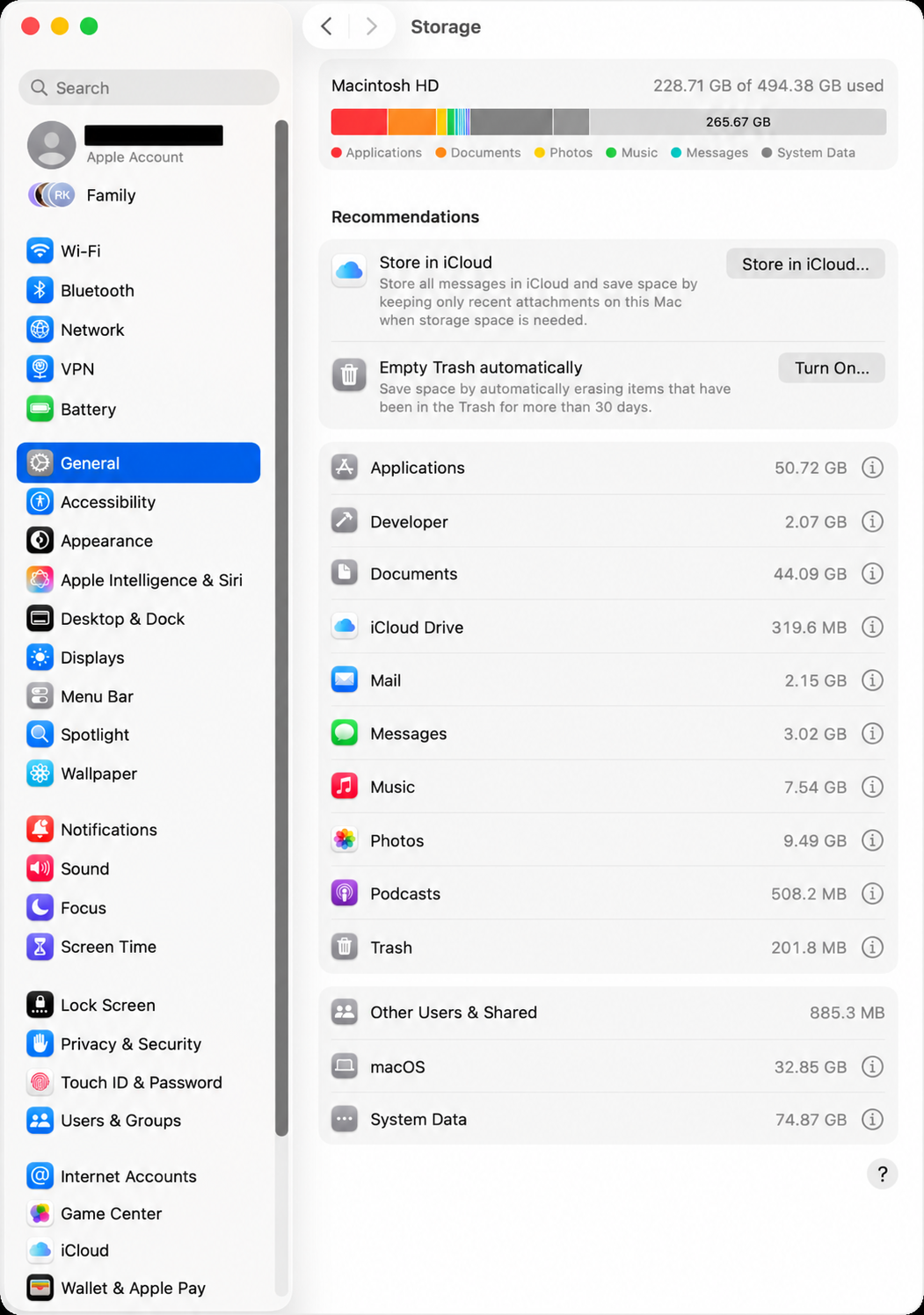
If you have 512 GB of storage and 500 GB of it is already being used, buying more memory wouldn’t solve that problem. You need more storage space or you need to move or remove some files.
How much memory do you need?
For everyday use such as email, web browsing, documents, video calls and Photos, the memory included with current Macs is enough for many people.
If you regularly work with large photo libraries, video editing, music production, virtual machines or other demanding software, additional memory can be worthwhile.
The important thing to remember when buying a modern Mac is that the memory is built into the Apple silicon system and generally cannot be upgraded later.
If you think you may need more memory in the future, it’s better to make that decision when you buy the Mac.
How much storage do you need?
Storage needs depend much more on what you keep on your Mac.
Someone who mainly uses email, the web and cloud storage may be perfectly comfortable with a smaller internal drive.
Someone with a large Photos library, years of video, music, business files or other media may need considerably more.
Unlike memory, storage can often be supplemented later with an external SSD or other external storage.
How can I check what my Mac has?
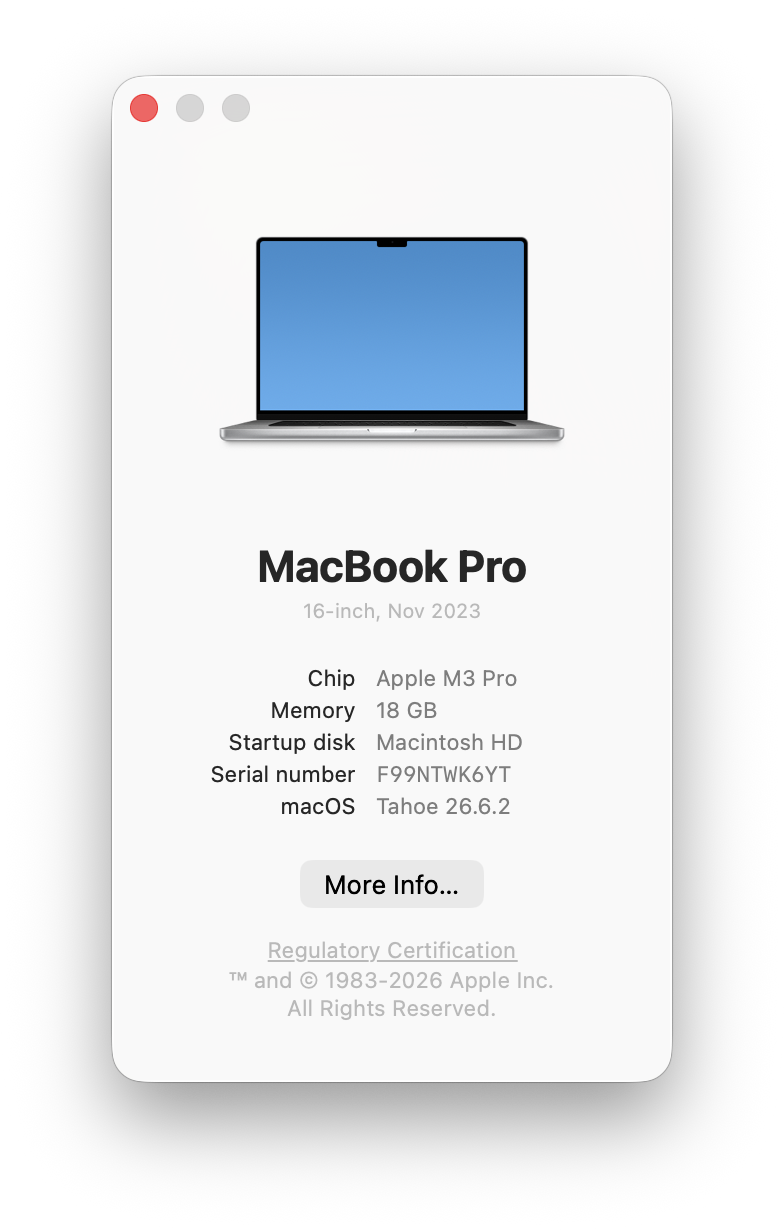
To see how much memory your Mac has, choose Apple menu > About This Mac.
To see how much storage you have and what is using it, go to Apple menu > System Settings > General > Storage.
The simple way to remember it
If you forget everything else, remember this:
Memory is how much your Mac can comfortably work on at once. Storage is how much stuff your Mac can keep.
They’re related, but they solve different problems.
And yes, Apple still measures both in gigabytes just to keep things interesting.
Need help choosing a Mac?
If you’re buying a new Mac and aren’t sure how much memory or storage you actually need, Up Your Media can help you choose a configuration that makes sense for how you use your computer.
We provide practical Apple support in Parksville, Qualicum Beach and throughout Central Vancouver Island.
Contact Up Your Media if you’d like help choosing, setting up or upgrading your Mac.