
Understanding System Settings on Your Mac
If you’ve used a Mac for a while, you may remember something called System Preferences. Apple renamed it System Settings and redesigned the layout to make it more consistent with iPhone and iPad.
The names and locations of some controls have changed, but the basic idea is still the same: this is where you manage how your Mac looks, connects, behaves and protects your information.
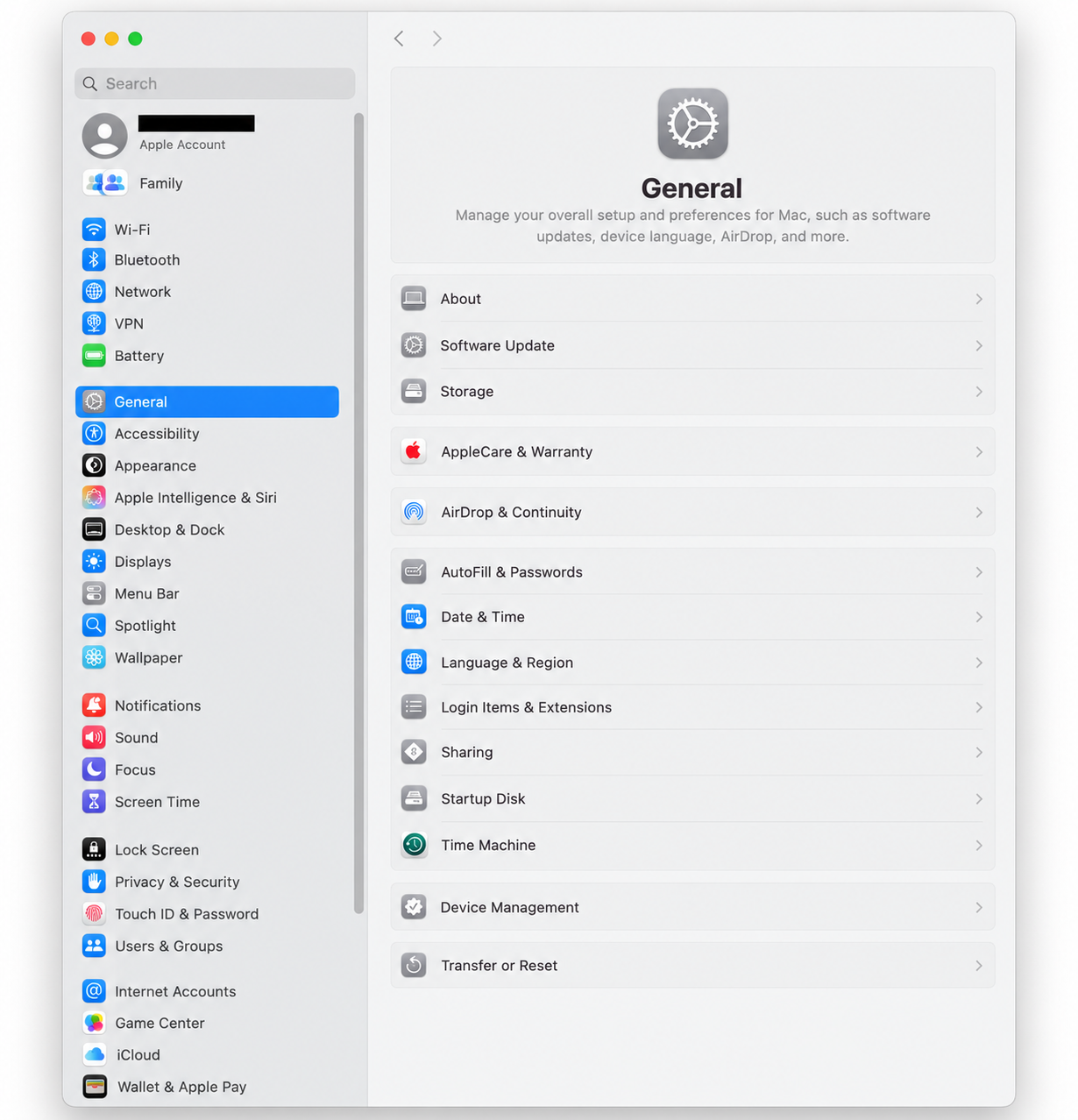
Use the sidebar to find what you need
The left side of System Settings is divided into categories. Some of the ones you’ll use most often include:
- Wi-Fi for wireless network settings
- Bluetooth for keyboards, mice, headphones and other devices
- General for software updates, storage, Time Machine, startup settings and more
- Accessibility for display, hearing, mobility and interaction options
- Appearance for Light Mode, Dark Mode and interface appearance
- Displays for screen resolution, brightness and external monitors
- Notifications for controlling alerts from apps
- Sound for speakers, microphones and alert sounds
- Privacy & Security for app permissions, FileVault and other security controls
General contains a lot of important settings
System Settings > General is one of the most useful sections on your Mac.
From here you can access:
- information about your Mac
- macOS software updates
- storage information
- AirDrop and Continuity settings
- date, time and language settings
- login items and extensions
- sharing options
- startup disk settings
- Time Machine
- transfer and reset options
Use Search when you can’t find something
System Settings contains a lot of options, and Apple occasionally moves them around between macOS versions.
If you’re not sure where a setting lives, use the Search field at the top of the sidebar. Type something like “printer,” “password,” “display,” or “Time Machine,” and macOS will usually take you directly to the right place.
This is often faster than guessing which category Apple decided made sense this year.
Your Apple Account settings
Your Apple Account appears near the top of the System Settings sidebar. This is where you manage things such as:
- iCloud
- Find My
- devices connected to your Apple Account
- payment information
- password and account security
If you use more than one Apple device, many of the features that connect your Mac, iPhone and iPad are controlled from here.
Privacy & Security is worth checking
The Privacy & Security section lets you see which applications have access to your camera, microphone, location, files and other personal information.
It’s worth checking occasionally and removing access from apps you no longer use or recognize.
Don’t be afraid to explore
Most changes in System Settings are easy to reverse, so it’s a good place to become familiar with how your Mac is configured.
If you’re unsure what a particular setting does, it’s better to find out before changing something important rather than clicking around randomly and hoping for a technological miracle.
Need help with your Mac settings?
If you’re having trouble finding a setting or getting your Mac configured the way you want, Up Your Media can help.
We provide practical Apple support in Parksville, Qualicum Beach and throughout Central Vancouver Island.
Contact Up Your Media if you’d like help setting up or troubleshooting your Mac, iPhone or iPad.