
Passwords, Passkeys and Security for Your Mac
Passwords have always been one of the more entertaining parts of working with computers.
I can’t count the number of times I’ve asked someone for their Mac password, email password, Apple Account password or Wi-Fi password, only to be greeted with the sort of blank stare normally reserved for questions about high-school algebra.
The good news is that password security has actually become easier. Your Mac, iPhone and iPad can now create, save and even fill in strong passwords for you. You no longer need to invent something clever involving the dog’s name and the year you bought your first car.
Macs are secure, but they’re not magic
There has always been a perception that Macs don’t get viruses or malware. macOS does include strong built-in security protections, but no computer is completely immune from malicious software, scams or compromised accounts.
For most people, the bigger security risk today isn’t a traditional computer virus. It’s being tricked into giving someone a password, approving a fake login request or installing something you shouldn’t.
In other words, your Mac may be pretty clever. The person sending you an urgent email claiming your account will be deleted in the next 15 minutes is counting on you being in a hurry.
Use a different password for every important account
The most important password rule is simple: don’t reuse the same password on multiple websites.
If one company suffers a data breach and your email address and password are exposed, criminals will often try that same combination on other services.
That means one compromised shopping account can potentially lead them to your email, social media or other accounts if you’ve reused the password.
Let your Mac create the passwords
There’s no longer much reason to invent passwords yourself.
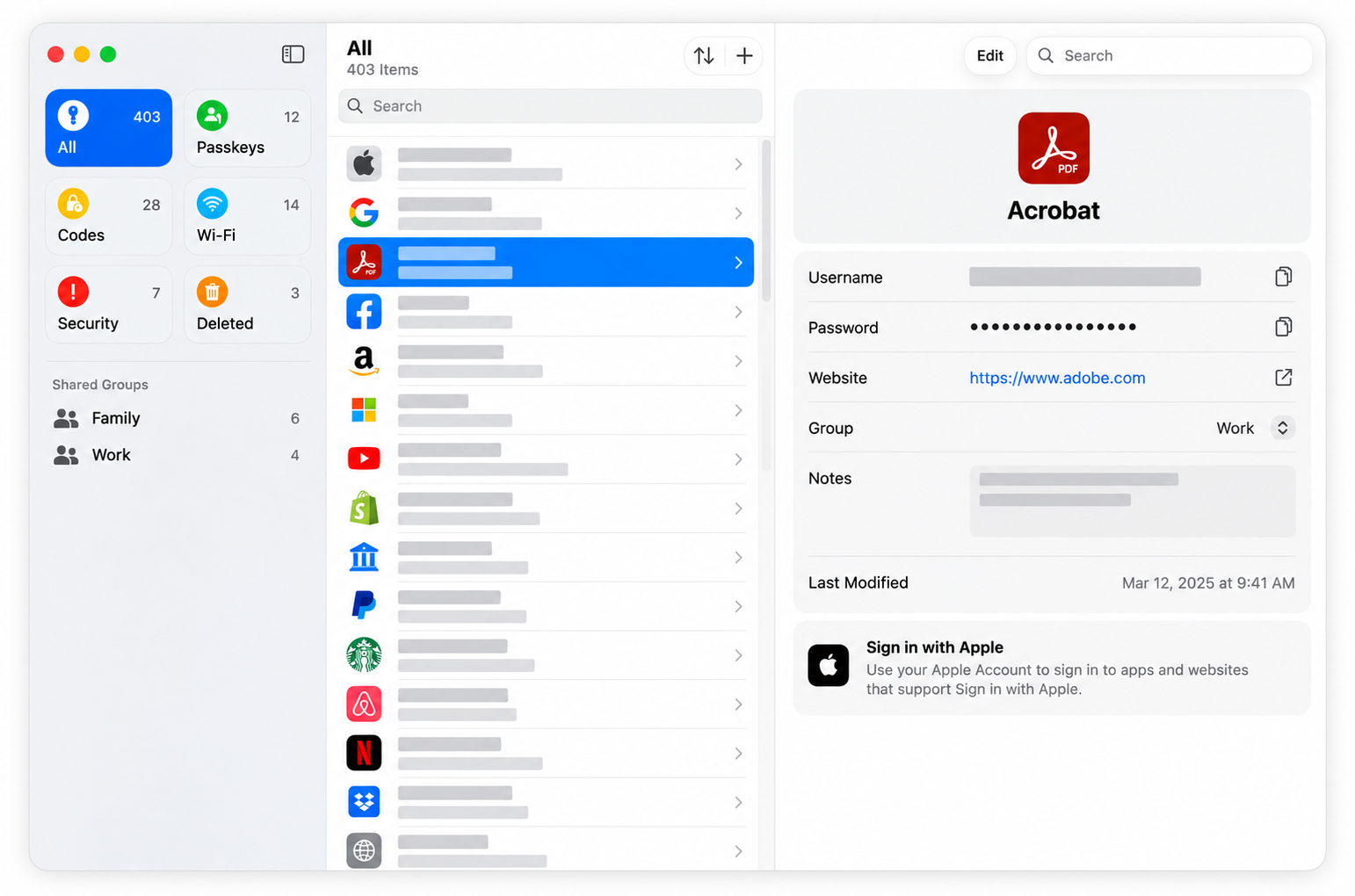
Apple’s Passwords app can create and securely store strong, unique passwords for websites and apps. Those passwords can sync through iCloud to your iPhone, iPad and other Apple devices.
You don’t have to memorize something like:
vQ8-Hr2-pZ7-xLm
Frankly, nobody should have to memorize that. Your Mac is perfectly happy to do it for you and, unlike the rest of us, it doesn’t forget where it put the piece of paper.
Use the Passwords app
Open the Passwords app on your Mac to view and manage passwords saved to your Apple Account.
You can use it to:
- find saved passwords
- create strong passwords
- identify passwords that have been reused
- see warnings about potentially compromised passwords
- manage verification codes
- manage passkeys
You’ll need to authenticate with your Mac password or Touch ID before viewing sensitive information.
What are passkeys?
You may increasingly see websites offering a passkey instead of a traditional password.
Passkeys let you sign in using Touch ID, Face ID or your device passcode rather than typing a password. They’re also much harder to steal through phishing because there isn’t a password for you to accidentally hand over to a fake website.
Not every service supports passkeys yet, but their use is growing.
Turn on two-factor authentication
Two-factor authentication, often called 2FA, gives important accounts an additional layer of protection.
Even if someone gets your password, they generally won’t be able to sign in without a verification code or approval from one of your trusted devices.
Your Apple Account should have two-factor authentication enabled, and it’s a good idea for your email, banking and other important accounts as well.
Your email account deserves extra protection
Email is particularly important because it’s often the key to everything else.
If someone gains access to your email account, they may be able to use password-reset links to take control of other accounts.
Use a unique password for your email and enable two-factor authentication whenever your email provider supports it.
Be suspicious of urgent messages
One of the most common ways passwords are stolen is through phishing.
You might receive an email or text claiming:
- your Apple Account has been locked
- your payment method has failed
- a package can’t be delivered
- someone has logged into your account
- you need to verify your password immediately
Don’t use the link in the message if you’re unsure.
Instead, open the company’s app or type its website address yourself and check your account directly. A legitimate problem will still be there when you arrive through the front door.
Should you write passwords down?
For someone who struggles to remember passwords or manage a password app, writing down important recovery information can still be better than using the same simple password everywhere.
If you do keep a written record, store it somewhere reasonably secure at home rather than taped to the monitor or tucked under the keyboard. Those remain surprisingly popular filing systems.
More importantly, make sure you know your Mac login password and have a reliable way to recover your Apple Account. Those are two credentials you really don’t want to discover are missing during an emergency.
Do you need to change passwords every few months?
Not normally.
A strong, unique password doesn’t need to be changed simply because a few months have passed. Change it if you believe it has been compromised, if a service reports a security breach, or if Apple’s Passwords app warns you about it.
Using unique passwords and two-factor authentication is much more useful than repeatedly changing a good password and trying to remember what you changed it to this time.
The simple version
If all of this sounds like a lot, concentrate on four things:
- use a different password for every important account
- let Apple’s Passwords app remember them for you
- turn on two-factor authentication
- don’t enter passwords after clicking unexpected links in emails or text messages
Those few habits will protect you from a large percentage of the security problems we see every day.
Need help sorting out your passwords?
If your passwords have become a collection of notebooks, sticky notes, forgotten accounts and increasingly creative guesses, Up Your Media can help get things organized.
We provide practical Apple support in Parksville, Qualicum Beach and throughout Central Vancouver Island.
Contact Up Your Media if you’d like help setting up Apple Passwords, two-factor authentication or improving the security of your Mac, iPhone or iPad.