
Is Santa Sending You a Scam? How to Spot Suspicious Emails on Your Mac
Even Santa Claus isn’t immune to email scams. Or at least, someone pretending to be Santa isn’t.
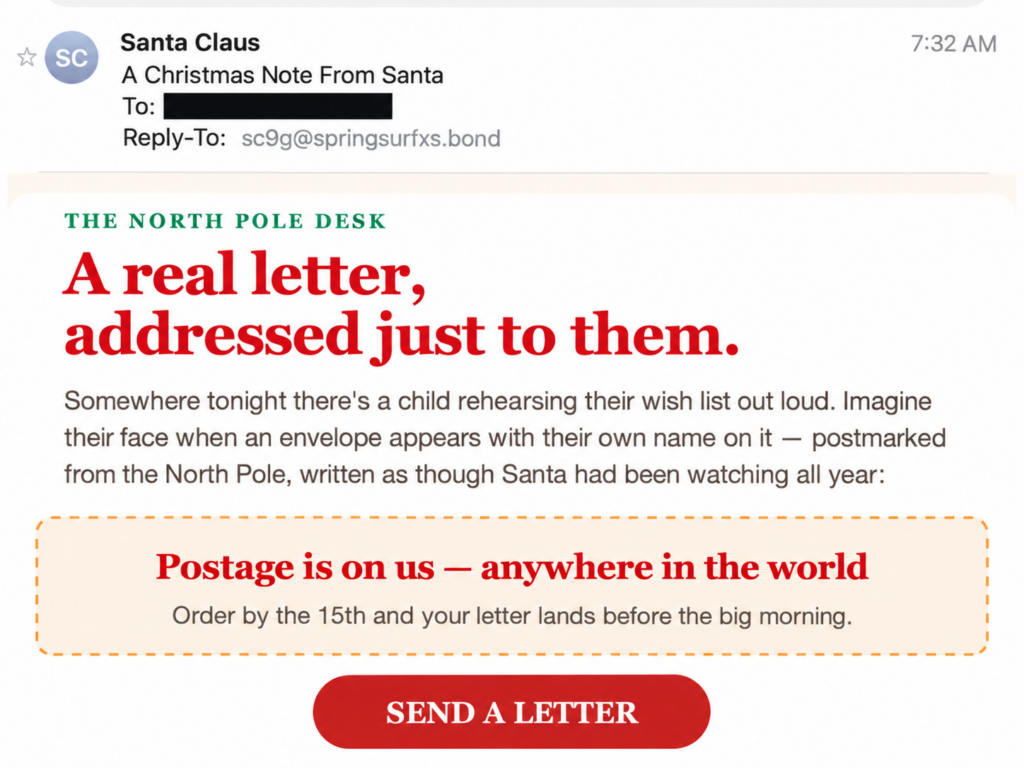
With Christmas approaching, scammers are taking advantage of the holiday season to send convincing-looking emails designed to get people clicking links, sharing personal information, or entering credit card details.
We recently came across an email supposedly from Santa Claus, advertising personalized Christmas letters for children. It looked professional, colourful, and surprisingly convincing.
But a closer look revealed several warning signs.
A Christmas Letter From Santa. Or Is It?
The email was titled A Christmas Note From Santa and advertised a service called “The North Pole Desk.”
It promised personalized letters that included a child’s name, age, hometown, and even details about friends, pets, and special achievements.
There was even an offer of free worldwide postage.
At first glance, it looked like a legitimate seasonal promotion. The design was polished, the language was friendly, and a large red button invited recipients to “SEND A LETTER.”
But the real story was hiding behind that button.
Red Flag #1: The Email Address Didn’t Match the Business
Although the sender appeared as “Santa Claus,” the reply-to address was:
sc9g@springsurfxs.bond
That’s hardly the sort of email address you’d expect from an established Christmas-letter business.
Anyone can change the display name on an email. Just because a message says it comes from Santa Claus, Amazon, Apple, or your bank doesn’t mean it actually does.
Always look beyond the sender’s display name.
Red Flag #2: The Link Led to a Suspicious Website
Instead of clicking the big red button, we inspected the link.
It pointed to:
http://www.springsurfxs.bond/njthdc
Several things immediately stood out:
- The domain name had no obvious connection to the advertised business.
- The link used HTTP rather than HTTPS.
- The address contained a random-looking string of characters.
- There was no clear indication of who operated the website.
To be clear, a strange domain or an HTTP link doesn’t automatically prove something is fraudulent. But combined with the other warning signs, it’s a good reason to stay away.
Red Flag #3: Another Email, Another Strange Domain
While investigating the message, we discovered another suspicious link in the Junk mailbox:
http://www.fastcabingu.bond/gtj0
Notice the similarities?
Both addresses used obscure .bond domains and short, seemingly random paths.
Spammers sometimes rotate through multiple domain names to avoid being blocked by email security systems.
We can’t confirm these two addresses belong to the same operation, but the similarities are concerning.
How to Check a Suspicious Link in Apple Mail
Fortunately, Apple Mail provides a simple way to inspect a link without opening the website.
On your Mac:
- Open the suspicious message in Apple Mail.
- Move your mouse pointer over the button or link, without clicking it.
- Right-click or Control-click the link.
- Choose Copy Link, if available.
- Paste the address into a text document to inspect it. Don’t press Return or open it in your browser.
Look carefully at the actual domain name.
For example, a message claiming to come from Apple should not be directing you to a completely unrelated website with a strange address.
Remember: Inspect first, click later.
If you aren’t sure about a link, it’s safer to visit the company’s official website directly by typing its address yourself.
Why Did This Email Reach My Inbox?
You might wonder why one suspicious email ends up in your Junk folder while another gets delivered straight to your Inbox.
Email providers use automated filtering systems to identify spam and phishing attempts.
These systems evaluate things like sender reputation, message content, suspicious links, and email authentication.
Unfortunately, they’re not perfect.
Scammers regularly change email addresses, domains, and message designs to get around those filters.
Just because an email appears in your Inbox doesn’t mean it’s safe.
What Should You Do With a Suspicious Email?
If something doesn’t look right:
- Don’t click links or buttons in the message.
- Don’t open unexpected attachments.
- Don’t reply or provide personal information.
- Don’t enter credit card information on an unfamiliar website.
- **Mark the message