
Get Some Peace Without Missing What Matters
Our iPhones are useful little devices, but they are also remarkably good at interrupting us.
Messages, phone calls, email, social media, news alerts and app notifications can turn a quiet evening into a steady stream of buzzing, banners and little red numbers demanding to be dealt with immediately.
Fortunately, you don’t have to choose between turning your phone off completely and being available to everyone all the time.
Apple’s Focus feature lets you decide who and what is allowed to interrupt you, and when.
Start with Do Not Disturb
The simplest Focus mode is Do Not Disturb.
To turn it on quickly, open Control Centre by swiping down from the top-right corner of your iPhone. Tap and hold Focus, then choose Do Not Disturb.
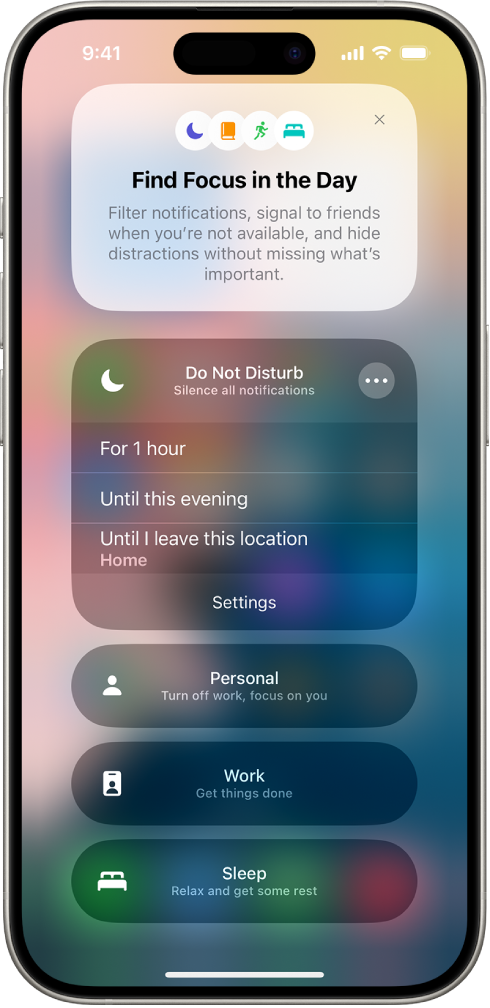
Your calls, messages and notifications still arrive. Your iPhone simply stops insisting that you deal with every one of them immediately.
You can also have Do Not Disturb turn itself on automatically at certain times, which is considerably more reliable than remembering to do it yourself every evening.
Set up Focus the way you want it
For more control, open:
Settings > Focus > Do Not Disturb
From there, you can decide which people and apps are allowed to notify you while Do Not Disturb is active.
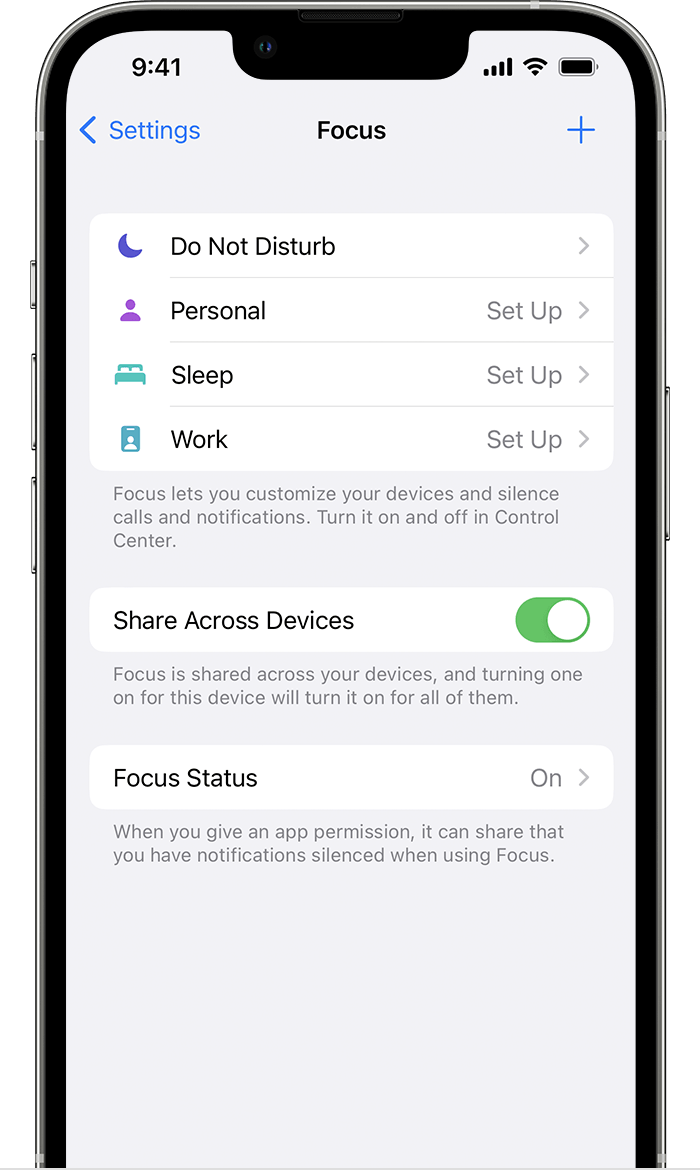
Let important people through
Under People, you can either allow notifications from certain contacts or silence particular people while the Focus is active.
For example, you might allow calls and messages from family members while silencing everyone else.
You can also turn on Allow Repeated Calls. If the same person calls again within a few minutes, the second call can come through. That can be useful if somebody is genuinely trying to reach you in an emergency.
For someone who absolutely must be able to reach you, there is also Emergency Bypass. Open that person in Contacts, tap Edit, then choose Ringtone or Text Tone and turn on Emergency Bypass.
Control which apps can interrupt you
Focus isn’t limited to phone calls and text messages.
Under Apps, you can choose which apps are allowed to notify you, or choose particular apps you want silenced.
You could create a quiet evening where calls from family still come through while Mail, Facebook, Instagram, news apps and the rest of the digital circus remain silent.
Or you might create a Work Focus that allows phone calls, Messages and Calendar notifications while keeping everything else out of the way.
What about important notifications?
Some apps can send notifications marked as Time Sensitive. Focus settings can allow those through even when most other app notifications are being silenced.
That can be useful for things like security alerts, delivery updates or other notifications you genuinely don’t want to miss.
The important word there is genuinely. Every app developer seems convinced their notification is the most important thing happening in your life.
Have Focus turn itself on automatically
You don’t have to remember to turn a Focus on manually.
You can create schedules and automations so a Focus activates based on things such as:
- a particular time of day
- your location
- opening a certain app
- your sleep schedule
For example, you could have Do Not Disturb turn on automatically every evening and switch off again the next morning.
You can also use separate Focus modes for Work, Personal, Sleep, Driving or create your own custom Focus for whatever particular part of life requires fewer interruptions.
Make Focus change your screen too
A Focus can also be connected to a particular Lock Screen or Home Screen.
That means a Work Focus could show your work-related widgets and apps, while a Personal Focus could switch to a completely different screen with fewer distractions.
It’s a useful feature once you get it set up, although setting it up may briefly require exactly the sort of concentration Focus was invented to protect.
Keep it consistent across your Apple devices
If you use more than one Apple device, turn on Share Across Devices under:
Settings > Focus
Your Focus settings can then work across your iPhone, iPad, Mac and Apple Watch when you’re signed in with the same Apple Account.
That means putting your iPhone into Do Not Disturb won’t leave your Mac happily chiming away beside you and defeating the entire exercise.
You can still stay connected
Focus isn’t really about disconnecting.
It’s about deciding when your technology gets your attention instead of allowing your technology to decide for you.
Spend a few minutes setting up Do Not Disturb or another Focus and you can have some peace and quiet while still making sure the people who matter can reach you.
Sometimes the smartest thing your smartphone can do is leave you alone.
Need help setting it up?
If Focus has become one more setting you keep meaning to figure out, Up Your Media can help set it up properly on your iPhone, iPad or Mac.
We provide practical Apple support in Parksville, Qualicum Beach and throughout Central Vancouver Island.
Contact Up Your Media if you’d like a hand getting your notifications under control.