
Using Multiple Photos Libraries On Your Mac
I regularly see Photos libraries with tens of thousands of pictures in them. That’s not necessarily a problem anymore, especially on a newer Mac, but it can still become an organizational mess surprisingly quickly.
Some people are perfectly happy keeping everything in one big library. Others would rather separate things by year, family member, work project, hobby or whatever system makes sense to them.
The good news is that the Photos app on your Mac can use more than one library, and switching between them is fairly straightforward once you know the trick.
Why use more than one Photos library?
Multiple libraries can be useful when you genuinely want to keep certain groups of photos separate.
For example, you might have:
- a main personal photo library
- a separate work library
- an archive of older photos
- a library for scanned family photographs
- a separate collection for a hobby or project
There’s no requirement to split things up, though. If one big library works for you, leave it alone. Sometimes the best organizational system is the one you’re actually going to use.
How to create another Photos library
First, quit the Photos app.
Then hold down the Option key while opening Photos.
You’ll see a window showing the Photos libraries available on your Mac. From there you can:
- open an existing library
- choose another library
- create a new library
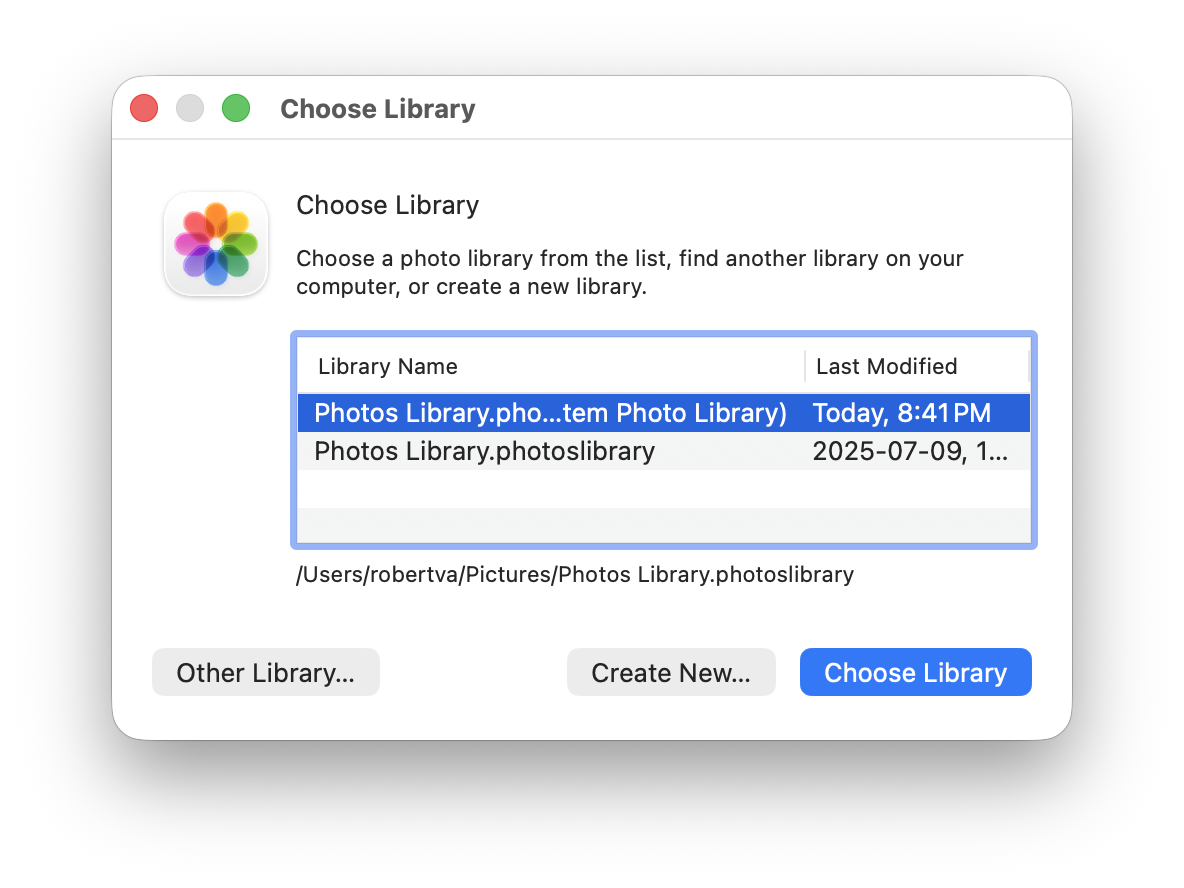
Click Create New, give the new library a useful name, and choose where you want to save it.
Photos will open the new library and you can import pictures into it just as you would with your original one.
I strongly recommend giving each library a name that will still make sense six months from now. “Photos Library 2” seems wonderfully obvious right up until the day you have Photos Library 3, Photos Library 4 and absolutely no idea what lives in any of them.
Switching between Photos libraries
When you want to switch libraries, quit Photos and reopen it while holding the Option key.
Select the library you want and click Choose Library.
You can also open a particular Photos library directly from the Finder by double-clicking the library file.
Once you’ve done it a couple of times, it’s easy. The hard part is remembering which library you put that one photo in three years ago.
Where should you store additional libraries?
Photos libraries can get quite large, so an external drive can be useful for older or less frequently used collections.
If you keep a Photos library on an external drive, make sure the drive is properly formatted for use with a Mac and connected before you try to open that library.
And make sure the library is backed up.
Moving 20 years of family photos onto one external drive and then declaring the job finished is not really a backup strategy. It’s just relocating the place where you can lose everything.
What about iCloud Photos?
This is the part where multiple libraries need a little more attention.
Only one Photos library on your Mac can be designated as the System Photo Library.
The System Photo Library is the one that works with iCloud Photos and other Apple services that depend on your main photo collection.
If you have several libraries, the others can still be opened and used normally, but they don’t all independently sync with iCloud Photos.
This is important to understand before creating a whole collection of separate libraries and expecting them all to magically appear on your iPhone.
How to choose your System Photo Library
Open the Photos library you want to use as your main library.
Then go to Photos > Settings > General.
If the library you have open is not currently the System Photo Library, you’ll see an option to Use as System Photo Library.
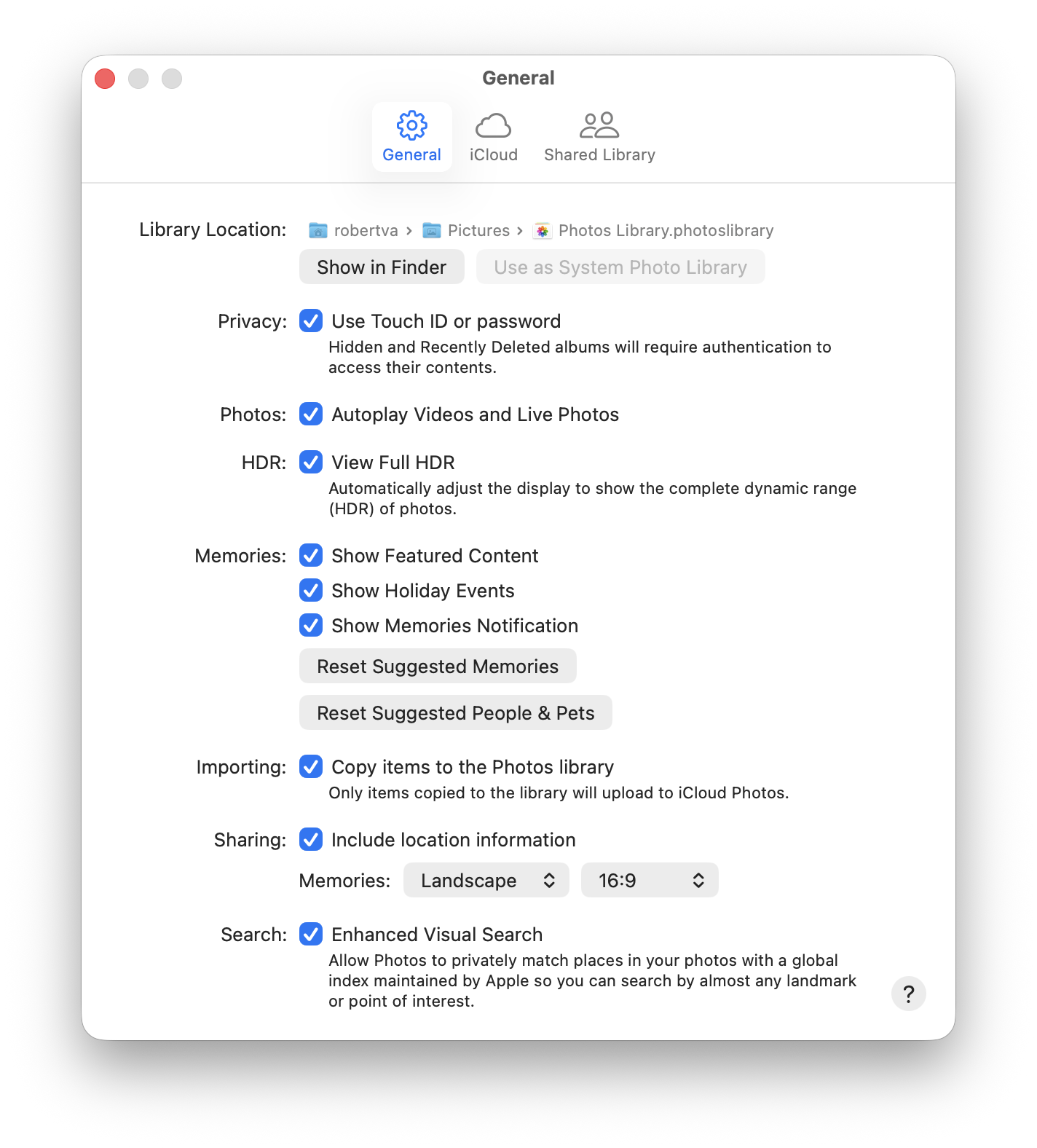
Once you designate a library as the System Photo Library, you can manage its iCloud Photos settings under Photos > Settings > iCloud.
I wouldn’t change the System Photo Library casually if you already use iCloud Photos. It’s much better to understand which library contains your main collection before clicking buttons and creating what I like to call a very educational afternoon.
One large library or several smaller ones?
There isn’t one correct answer.
For most people, I’d still recommend keeping one main Photos library. It’s simpler, everything is searchable in one place, and it works cleanly with iCloud Photos.
Multiple libraries make sense when you have collections you genuinely want to keep separate, particularly work photos, large archives or older collections you don’t need available all the time.
If your only reason for creating several libraries is that your main Photos library feels disorganized, try using albums, folders, keywords and search first.
Photos has become very good at finding things. You can search by people, places, dates and even objects in photographs, which is often easier than remembering which separate library you put something into.
Need help organizing your Photos library?
If your Photos library has turned into a mixture of duplicates, old imports, screenshots you no longer remember taking, and 47 nearly identical pictures of the same sunset, Up Your Media can help get things under control.
We provide practical Apple support in Parksville, Qualicum Beach and throughout Central Vancouver Island.
Contact Up Your Media if you’d like help organizing, moving, backing up or managing your Photos libraries.