
Your Mac Says Your Startup Disk Is Almost Full. Now What?
If your Mac warns that your startup disk is almost full, don’t panic. It simply means your Mac is running low on available storage space, and that can slow things down, cause apps to misbehave, and make macOS updates difficult to install.
The good news is that in many cases, the fix is straightforward.
What does “startup disk” mean?
Your startup disk is the internal storage in your Mac. It holds macOS, your applications, photos, documents and other files. When that storage gets too full, your Mac has less room to work properly.
See what’s using your storage
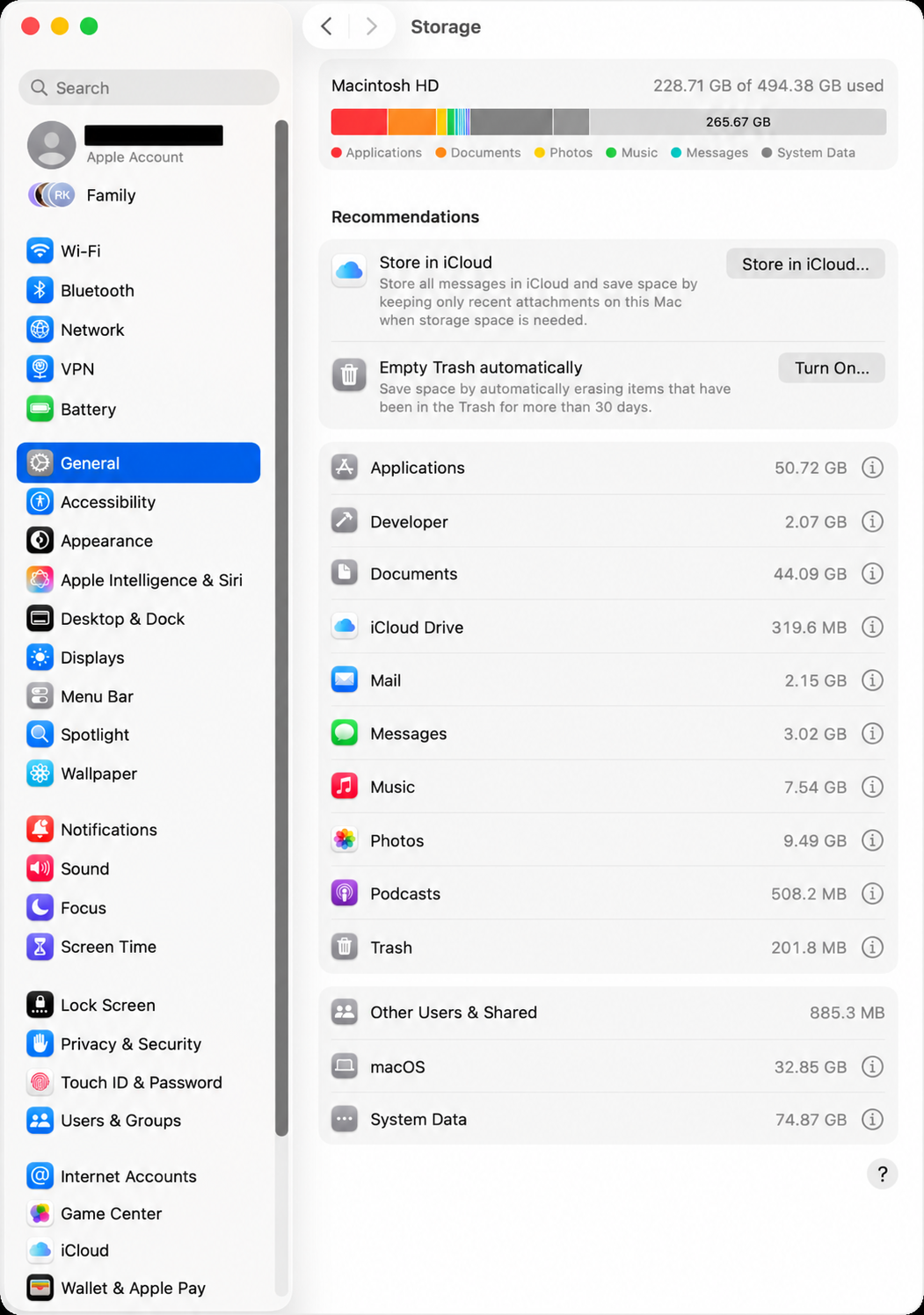
On a current version of macOS, go to Apple menu > System Settings > General > Storage.
You’ll see a breakdown of what’s taking up space, including applications, documents, photos, messages and system data. This is the best place to start before deleting anything.
Common reasons your Mac fills up
- Large Photos or video libraries
- Files piling up in Downloads
- Old installers, backups and disk images
- Messages and Mail attachments
- Large applications you no longer use
- System Data taking up more space than expected
Easy ways to free up space
- Empty the Trash. Files in the Trash still use storage until they’re permanently removed.
- Check your Downloads folder. Old installers, zip files and duplicate downloads can quietly consume a surprising amount of space.
- Remove large files you no longer need. Movies, old projects and disk images are common culprits.
- Move large files to an external drive. Photos, videos and archived projects don’t necessarily need to live on your Mac’s internal storage.
- Review Apple’s storage recommendations. macOS can help identify large files and other opportunities to recover space.
What not to do
Don’t start deleting random files from the System or Library folders just because something looks large. That’s an excellent way to turn a storage problem into a considerably more interesting computer problem.
If you’re unsure what something is, find out before deleting it.
Consider an external drive
If your Mac has limited internal storage, an external SSD can be an inexpensive way to store large photo libraries, videos, archives and other files you don’t need on the internal drive all the time.
Your Mac should still have some free internal storage available. Running it completely full can cause poor performance and other problems.
Back up before making major changes
Before moving or deleting large amounts of data, make sure you have a current backup. Time Machine remains one of the easiest ways to protect the files on your Mac.
Need help sorting it out?
If your Mac is running out of storage and you’re not sure what’s safe to remove, Up Your Media can help. We provide practical Apple support for Mac users in Parksville, Qualicum Beach and throughout Central Vancouver Island.
Contact Up Your Media if you’d like help freeing up storage, moving files safely or deciding on the best long-term storage solution for your Mac.